



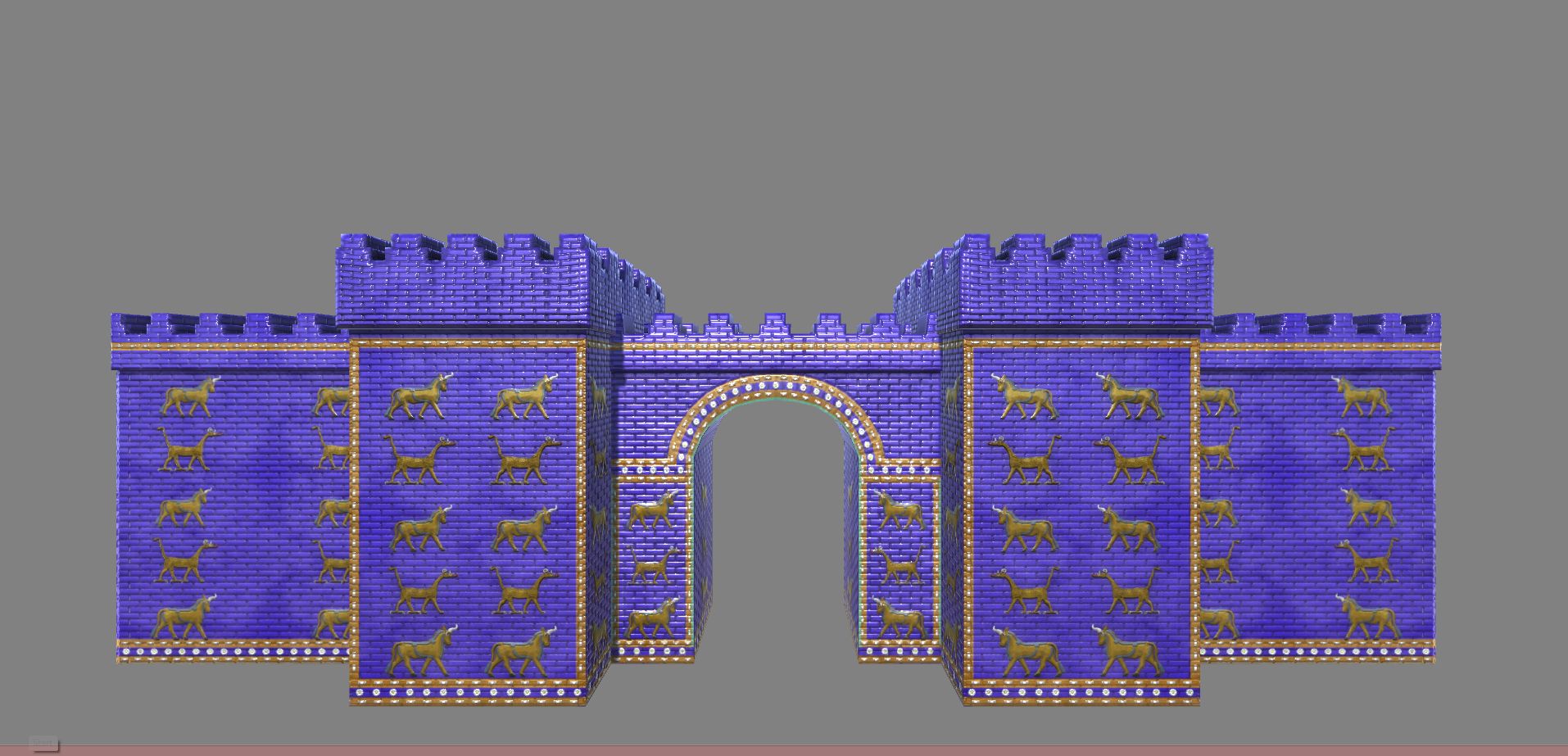
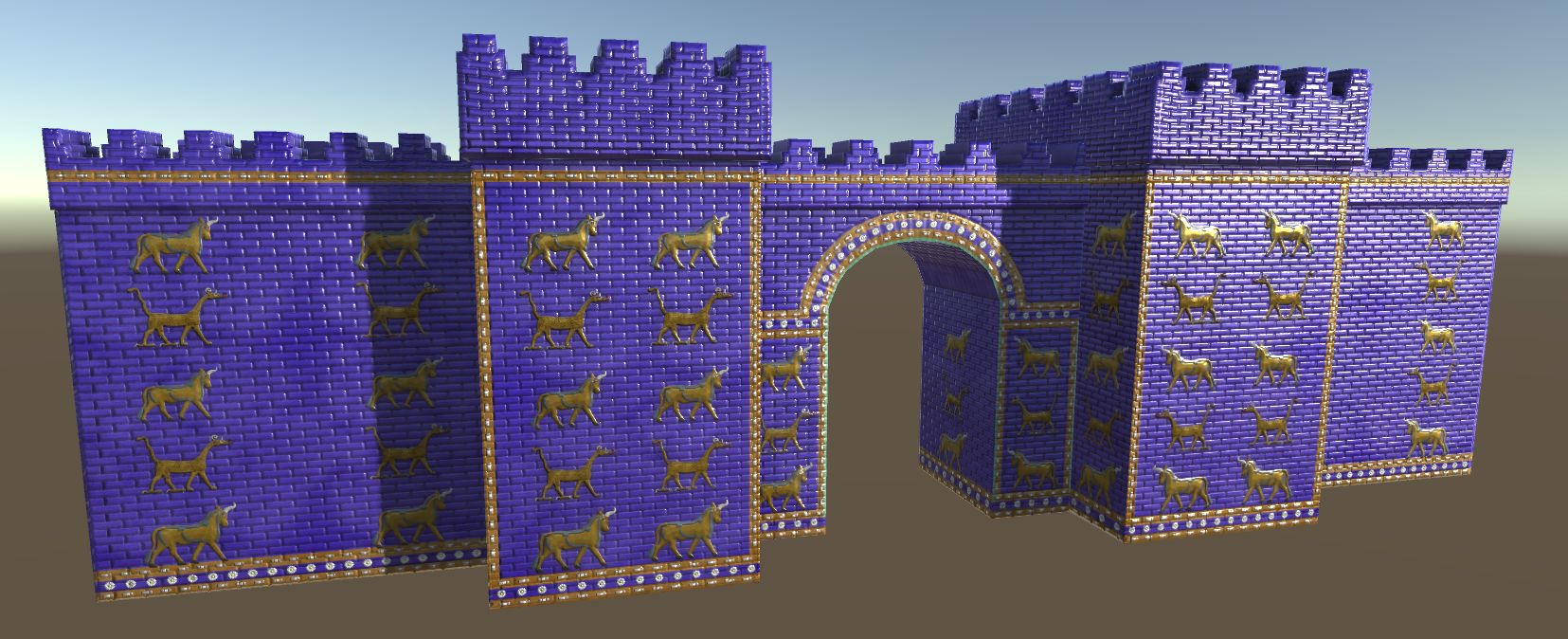
Porte d'Ishtar modèle 3D
0






Licence Libre de DroitsToutes les utilisations prolongées
Retours simples
Garantie du meilleur prix
Fonctionne hors de la boîte
0
visites

Proposé par
chris.dougherty
Caractéristiques
- Géométriepolygonal
- Des polygones1,736
- Sommets874
- Les texturesYes
- GrééNo
- AniméNo
- Prêt pour l'impression 3DNo
- Jeu Prêt (low poly)No
- UV mappéYes
- UV non emballésoverlapping
La description
Product information:
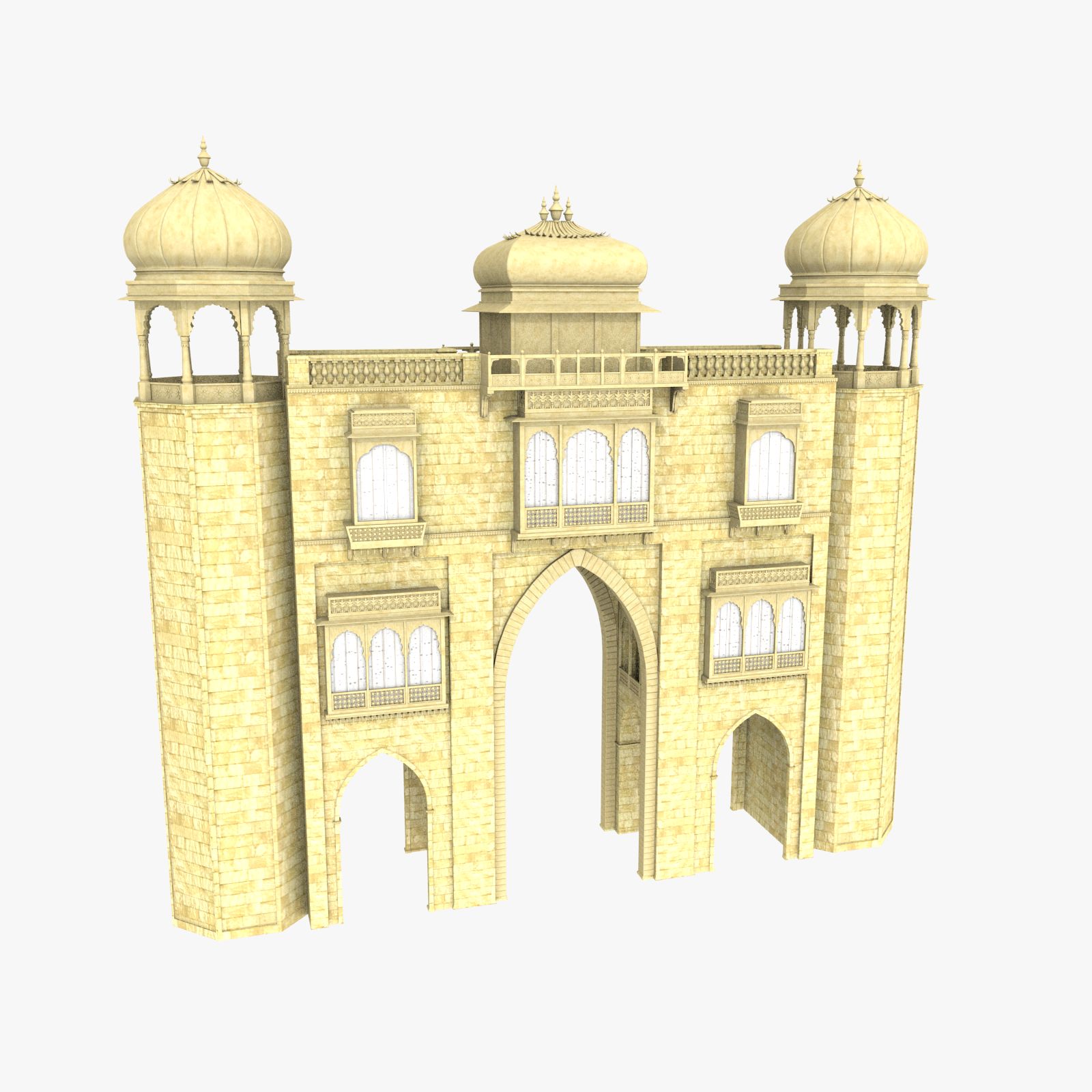
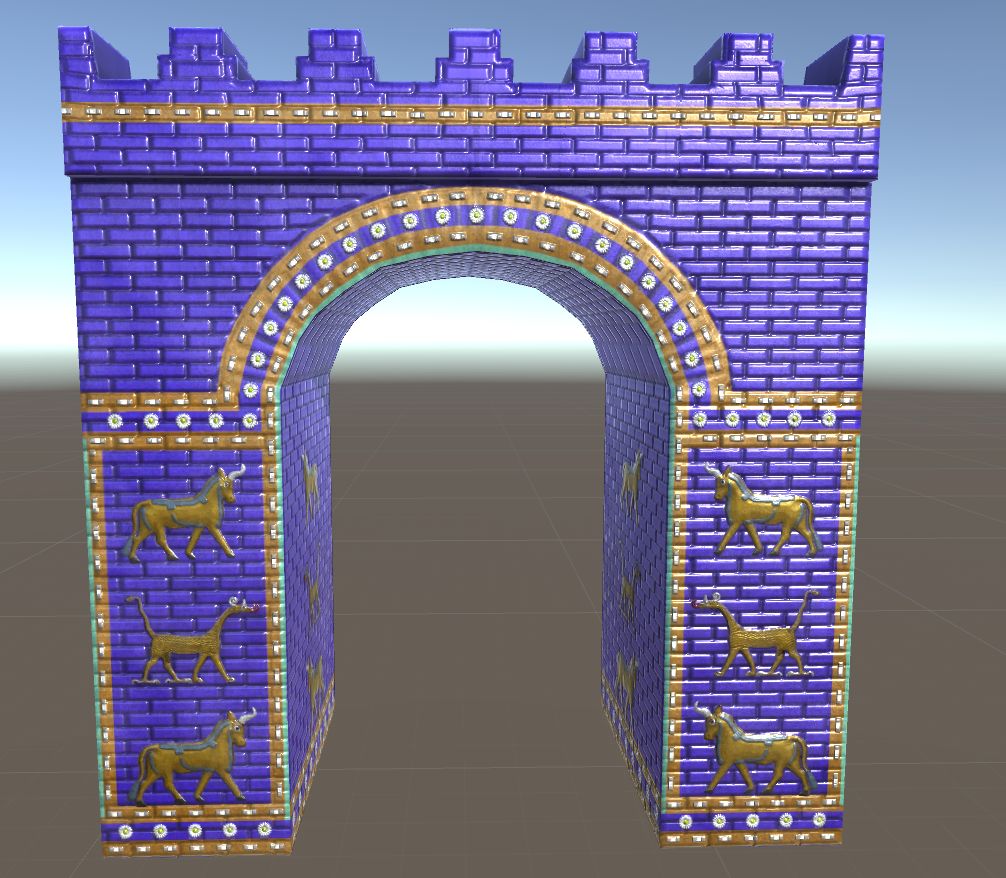
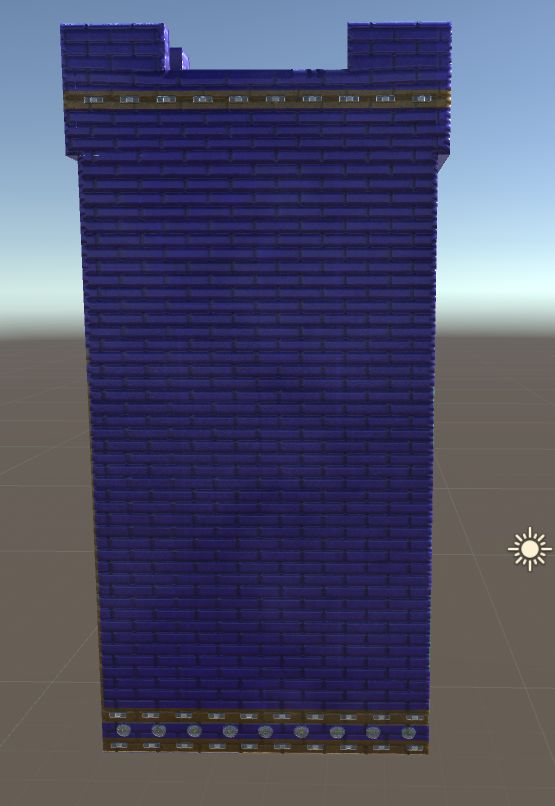
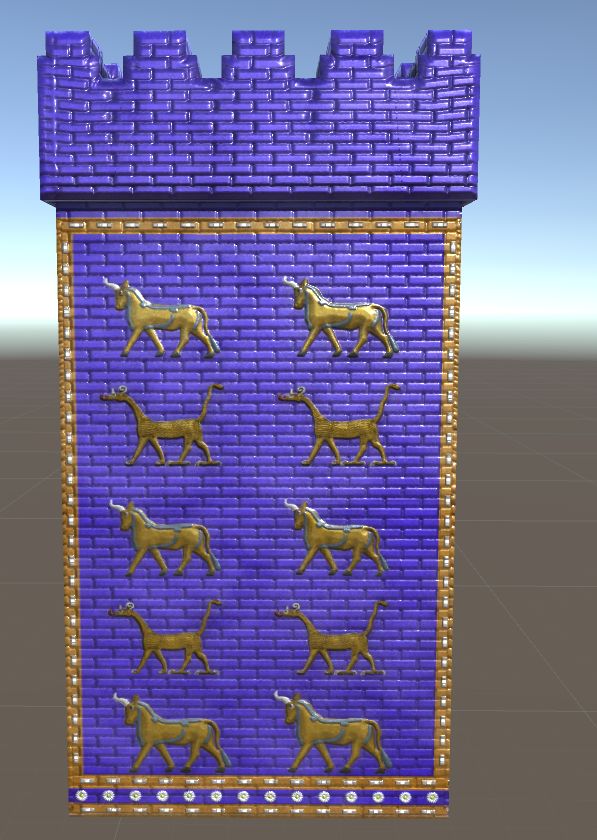
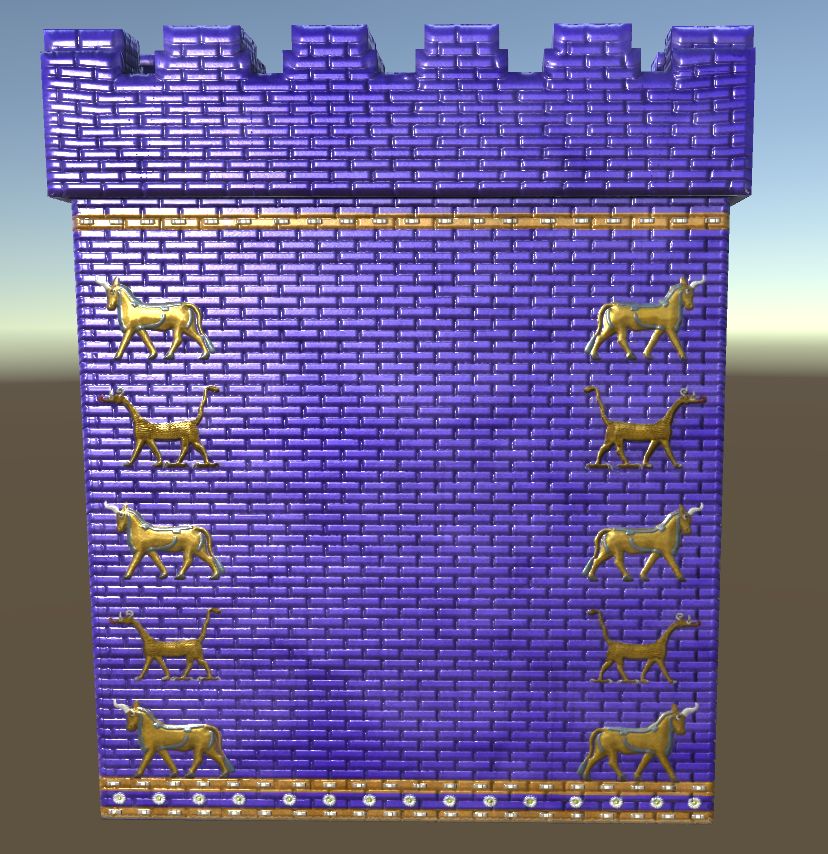
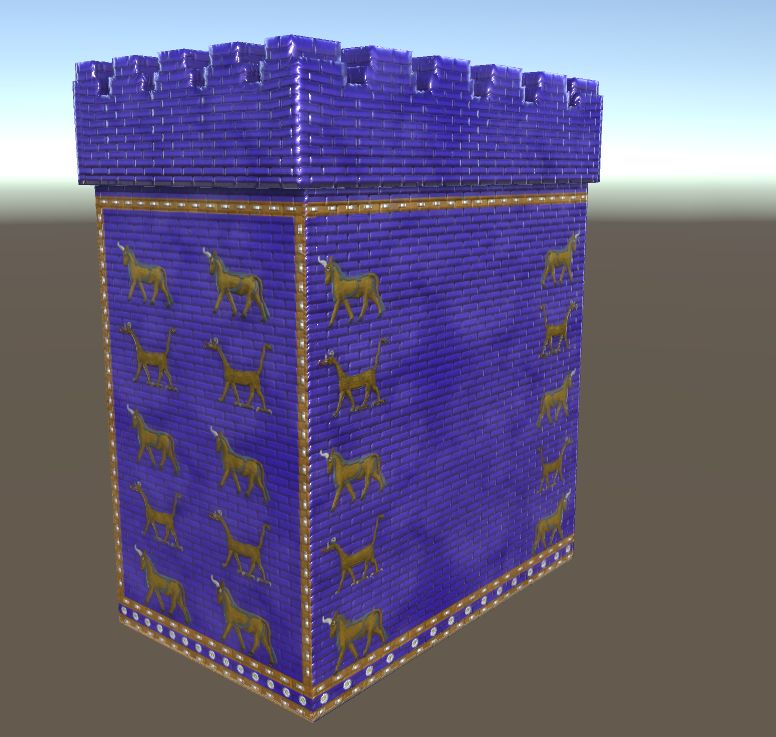
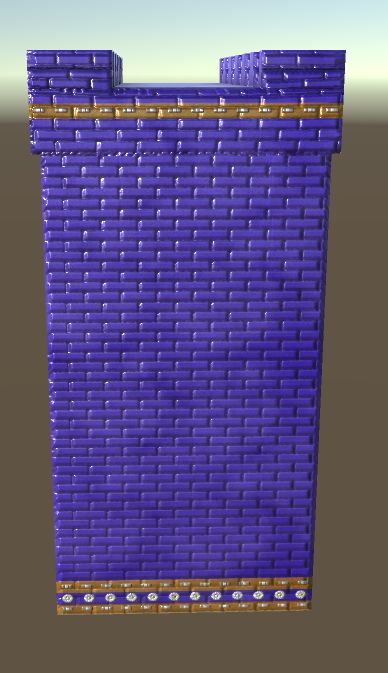
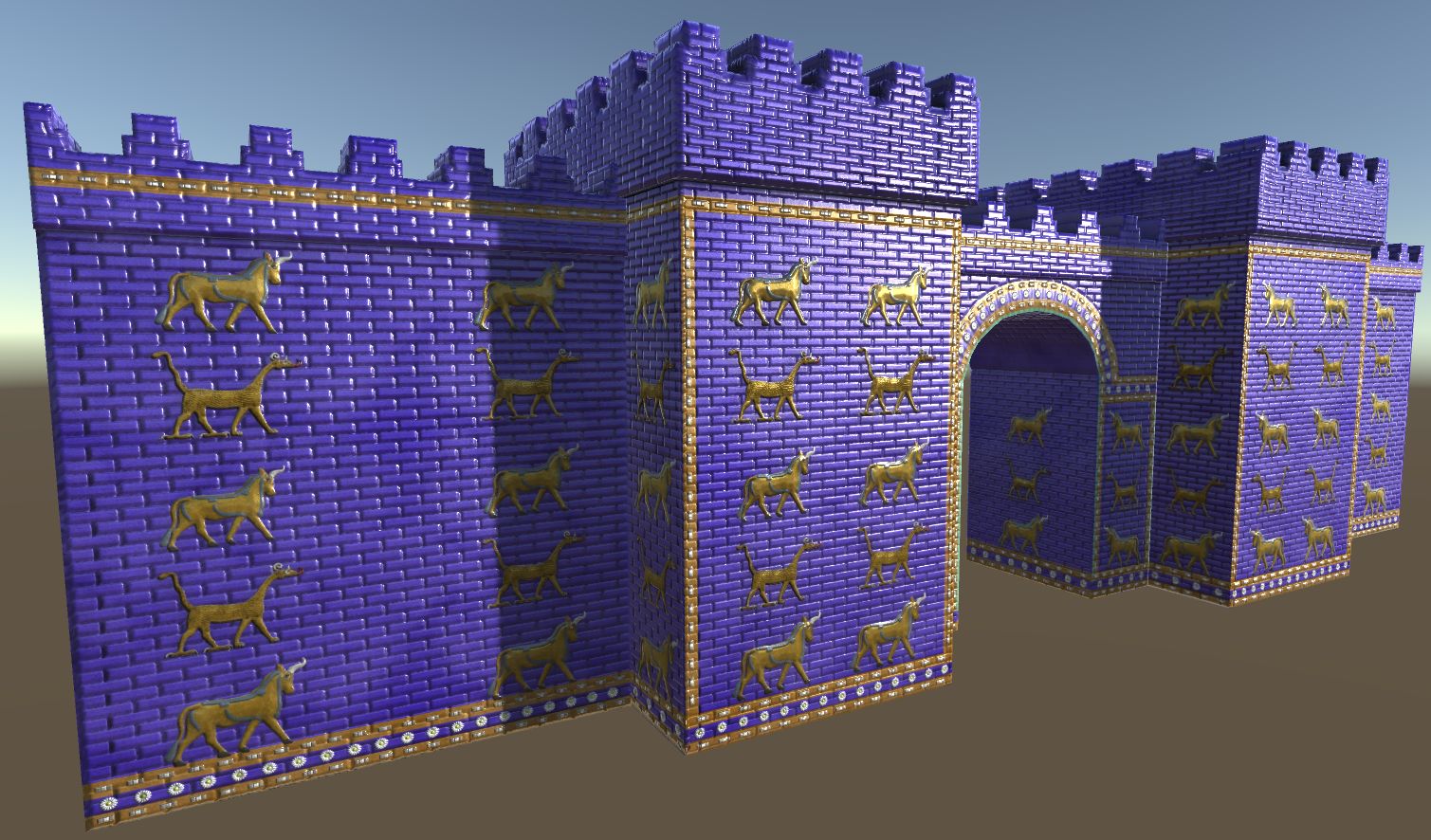
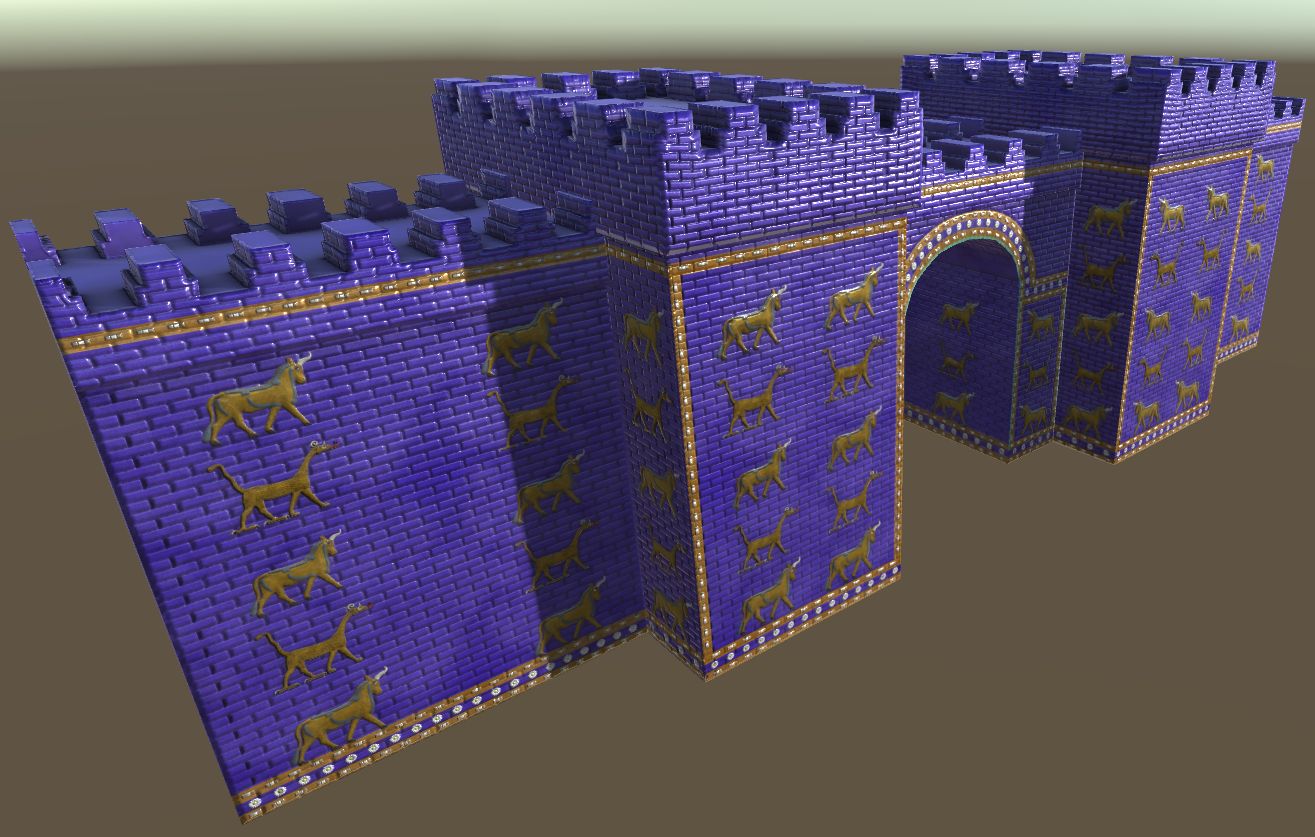
This comes with 3 pieces(Arch, Tower and Wall) that can be easily copied and pasted to create your own enclosed kingdom. Includes Low/High poly OBJ, FBX,Unity Asset Package and 2K/4K textures. I also included decals that I used for the animals/flowers and a Substance Designer material.
Historical Notes:
The Ishtar gate was constructed around 575 in the city of Babylon. King Nebuchadnezzar II ordered that the gate be constructed and dedicated it to the Babylonian goddess Ishtar. The Three figures on the gate represent Mushussu(Dragons), Aurochs(Bulls) and lions which represent Mesopotamian gods. The ruins of Babylon are in modern day Iraq.
Arch: 608 Polygons / 306 Vertices
Tower: 676 Polygons / 340 Vertices
Wall : 452 Polygons / 228 Vertices
Total: 1736 Polygons / 874 Vertices
Maya Notes:
Compatible with Maya 2017 onward.
Works with Maya 2016 as well but might give error on startup due to Arnold renderer not existing
One file is meant for Arnold in Maya 2018
the other Maya file is meant for Maya 2016/2017 and uses a Stingray PBR material
Folder structure for Maya should look like this:
/IshtarGate_All.ma
/workspece.mel
/IshtarGate_Textures/
Otherwise textures may appear black in Maya
If the textures appear black you can go into the materials and link the textures.
Unity Notes:
I have included a asset package for easy importing.
Just drag and drop the Asset Package into your Unity Project.
Manual importing:
support for Maya stingray materials was added in Unity 2017.2 as well as other FBX related fixes.
In Unity 2017.3 a new workflow was added for embedded materials, to import textures from the FBX you have to go to the object's import settings, go to the new materials tab, select 'Extract Textures' and create/select a folder where you want the textures to go(examples: "Textures" or "Textures/IshtarGateArch").A popup will appear saying a normal map was detected, press 'Fix Now'. if you accidently use 'Extract Materials' instead of 'Extract Textures' you can extract the textures then manually remap them to the empty material or delete the object/textures/materials and re import.
To get accurate scaling in unity set the 'Use File Scale' False in the models import settings(select model in Assets folder)
Before Unity 2017.2/creating Materials from scratch:
Create two folders. Call them "Materials" and "Textures". In the Materials folder create 3 new materials(right click>Create>Material). Name the materials: IshtarGateArch, "IshtarGateTower" and "IshtarGateWall". In the Textures folder import all the textures from this package.Then click every material and in "Main Maps" plug in the textures.
May 24, 2020
date ajoutée
Sep 30, 2022
dernière mise à jour
Avis
Il n'y a actuellement aucun avis sur ce produit.
Pourquoi ne pas être le premier à briser la glace?
