


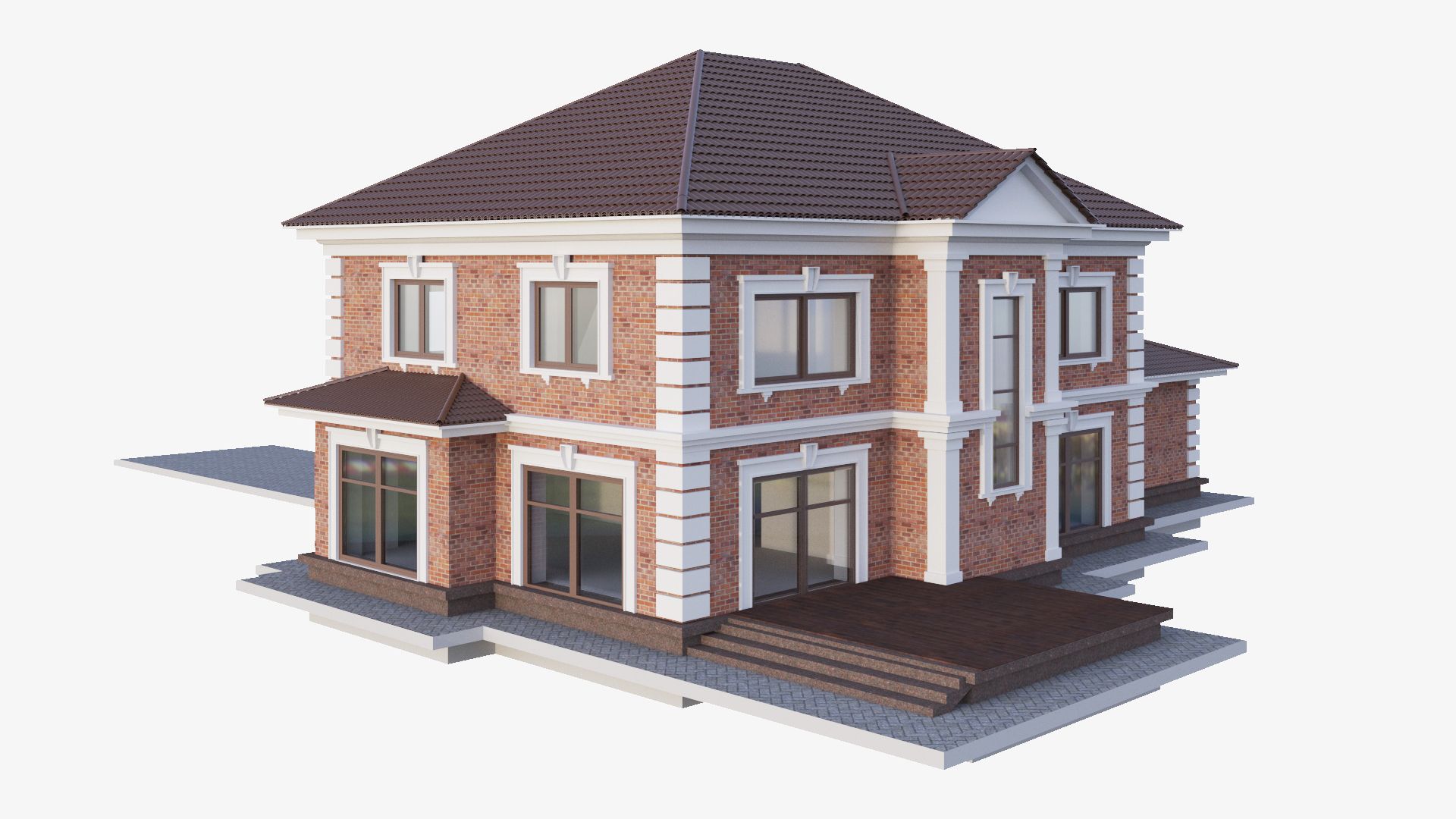

Старый кирпичный дом 3D модель
0


Бесплатная лицензияВсе расширенное использование
Простые возвращения
Гарантия лучшей цены
Работает из коробки
0
посещения

Представленный
3DVoid
Характеристики
- Геометрияpolygonal
- Полигоны268
- вершины365
- текстурыYes
- подстроенныйNo
- мультипликационныйNo
- Готов к печати в 3DNo
- Игра готова (низкополигональная)No
- UV MappedYes
- Развернутые уфnon-overlapping
Описание
Old Brick House - PBR, Low poly - game ready.
Made in Blender, textured in Substance Painter and Rendered in Marmoset Toolbag 3
Contains: 1 Old Brick House -> 365_verts, 268_faces, 605_tris 2 materials: one for House and other for windows.
Texture Workflow: Metallic
!!! NOTE: I only provide you with Unity and Unreal Engine Textures and Not project example. You have to Drag in, Textures and file formats into your project yourself. !!!
Texture Sets: Standard, Unity, UE4
Texture Size: 4k for House and 2k for windowsPNG (Textures can always be scaled down, in any software if needed) [For texture setup read my short tutorial at the end of this description]
Formats: FBX, OBJ, COLLAD[DAE], BLENDER[ORIGINAL]
Real world size: 9.53x5.07x4m System units: meters
___________UE4 Textures Setup_______
Import Base color, Normal map and Roughness-AO-Mettalic (all baked into one map) Double click Roughness-AO-Metallic and disable sRGB.
In House Material: Drag these 3 maps into it. Base color and normal map connect to their inputs. [Some of my assets don't have a normal map, so proceed without it]
Set Roughness-AO-Metallic node to linear color (Only works if you turned off sRGB before)
Connect RED channel to AO GREEN to Roughness BLUE to Metallic
In Windows Material:
Select the main node (Name of that node is the name of the material) and change Blend mode to Translucent. And Connect Alpha channel of Base Color to Opacity input. Everything else do like before (you don't need to connect Roughness and Metallic since changing to Translucent Doesn't take them as inputs. Look of your windows won't be exactly the same as in Unity or other software.)
___________Unity Note_____________
FOR UNITY USE FBX!
Better results in Unity:
I went to Edit>Project Settings>Player>Other Settings>ColorSpace and set it to Linear.
That's what I did in my Unity photo example.
[Set Normal map texture type in the inspector to normal map and apply]
To set up Brick House material: Drag in House_FBX In House_FBX Inspector right-click House Material and select Create Material Preset do the same for windows material. In Project tab select House material preset we created and select textures. Drag and drop that material to House Do the same for window texture but select Rendering Mode to fade. You can choose transparent but this one gives better results
Jun 09, 2020
Дата Добавлена
Dec 06, 2021
последнее обновление
Отзывы
На данный момент нет отзывов об этом продукте.
Почему бы не первым сломать лед?