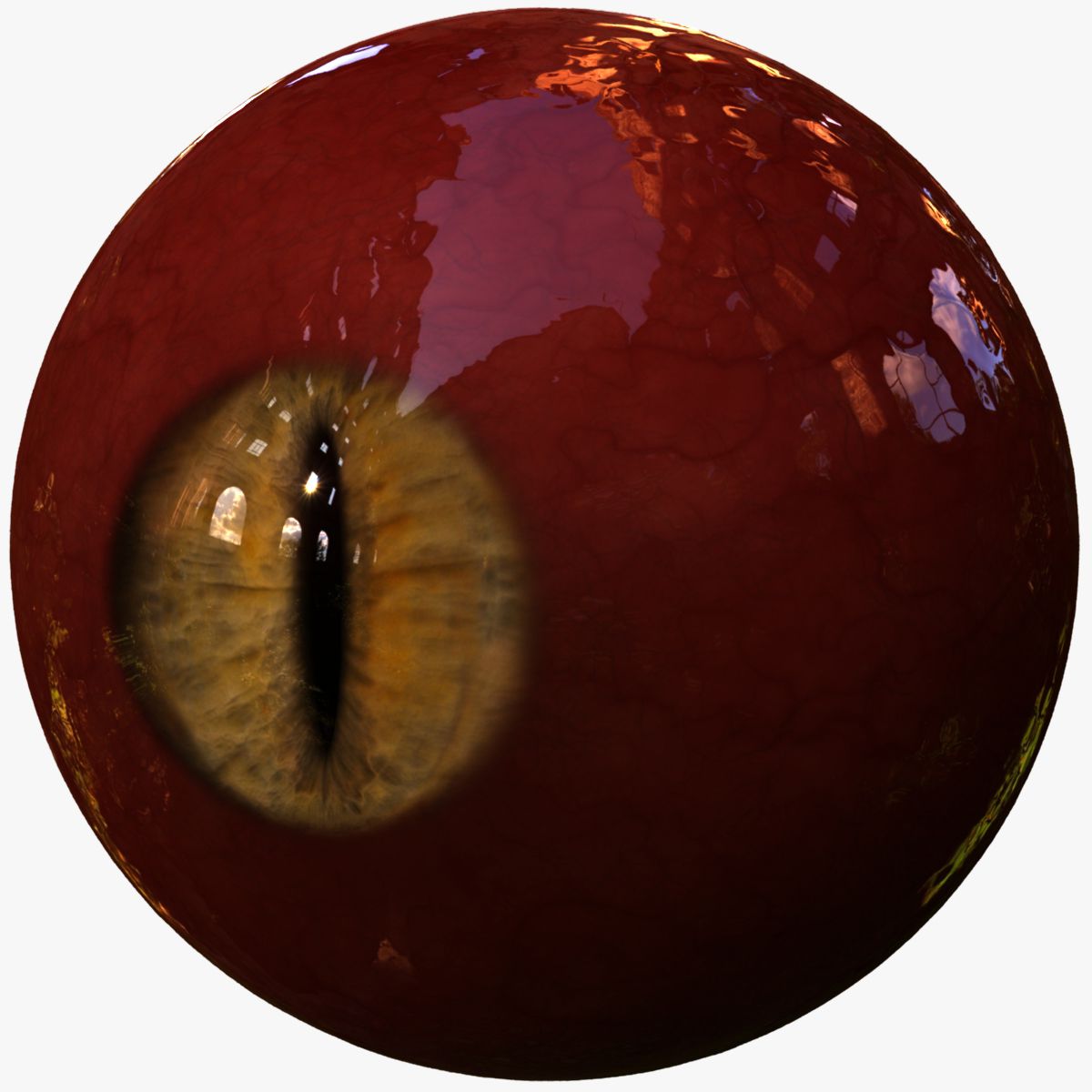


Realistic Jaundiced Eye 3D Model
0


0
visits

Submitted by
Jared McAllister
Specifications
- Geometrypolygonal_quads only
- Polygons11,904
- Vertices12,296
- TexturesYes
- RiggedYes
- AnimatedNo
- 3D Printable ReadyNo
- Game Ready (low poly)No
- UV MappedYes
- Unwrapped UVsnon-overlapping
Description
This is a realistic human or creature eye model made for any purpose you may need.
FEATURES:
* 9 realistic eye colors that are easily modified into many more.
* Easy Controls
* Retina reflectivity control. (Defaults to 0.3 which is pretty realistic. 0 = No Reflection)
* Pupil dilation control
* Bloodshot level control from clear to full zombie (See pictures and animations)
* Yellowing level control from clear to jaundiced eyes.
* Brightness control for both the eyes and the pupils to match them to any character. Also good for special effects. Controls from Black (0) to 5 times as bright as normal. Default is 1.
* 2 Eye shapes Realistic with raised cornea, and perfectly spherical (Useful for cartoony characters).
* Slitted pupil morphs for special effects such as cat, snake, and dragon eyes.
* Eye automatically blends with the eyelids. (See pictures look for the reflection of tears on lower eyelid)
EYE COLORS:
* Blue (2)
* Hazel
* Green (2)
* Light Brown
* Dark Brown (Almost Black)
* Grey-Green
* Yellow-Green
SUPPORT:
Currently there are no known problems, but I can be reached through Turbosquid support tickets for help, and will do whatever I can to add any features you may need. Also, once you purchase this, you can download any future updates free.
MAPS:
* Each Iris has 4 1024x1024 maps Color, Displacement, Normal Map, and Subdermal (9 Iriss)
* The sclera has 4 4096x4096 maps Color Clear, Cornea Mask, Displacement, and Color Bloodshot
* The retina has 1 4096x4096 map Color
There are 2 included HDR Images for environmental scene lighting and reflections. (Image Based Lighting)
* PaperMill 3200x1600
* Studio Light 1500x750
SIZE:
* 3.6 Centimeters Diameter
RIGGING:
This model is rigged with Blend Shapes for the Iris in Maya, and Morph Targets in 3DS Max. There are also convenient controls for modifying the shader. Simply select the Eye direction pointer, and in Maya select the channel box, and the various controls are there. In 3DS Max, select the Eye direction pointer, and the controls are located in the Custom Attributes drop-downs in the modify tab.
Aug 04, 2020
date added
Sep 28, 2021
last update
Reviews
There are currently no reviews for this product.
Why not be the first one to break the ice?